
Archived Agent Session Viewer — AI skill for Claude Code
Browse, search, and revisit your AI coding sessions.
How to install Archived Agent Session Viewer
This entry records only its repository, not the path inside it, so there is no
exact command to give. Open wesm/archived-agent-session-viewer and copy the folder into
~/.claude/skills/, or the file into ~/.claude/agents/.
What Archived Agent Session Viewer does
Browse, search, and revisit your AI coding sessions.
Alternatives in AI
- Session Kit — Close the terminal windows, not the AI coding sessions 649 ★
- Browser Search — A skill for AI agents: search the web with SearXNG, browse with Camofox, bypass protections with CloakBrowser 499 ★
- Lovcode — A desktop companion app for AI coding tools 315 ★
README
Agent Session Viewer
**This project has been superseded by [AgentsView](https://github.com/wesm/agentsview) ([agentsview.io](https://agentsview.io)) and is no longer maintained.** Please use AgentsView instead.
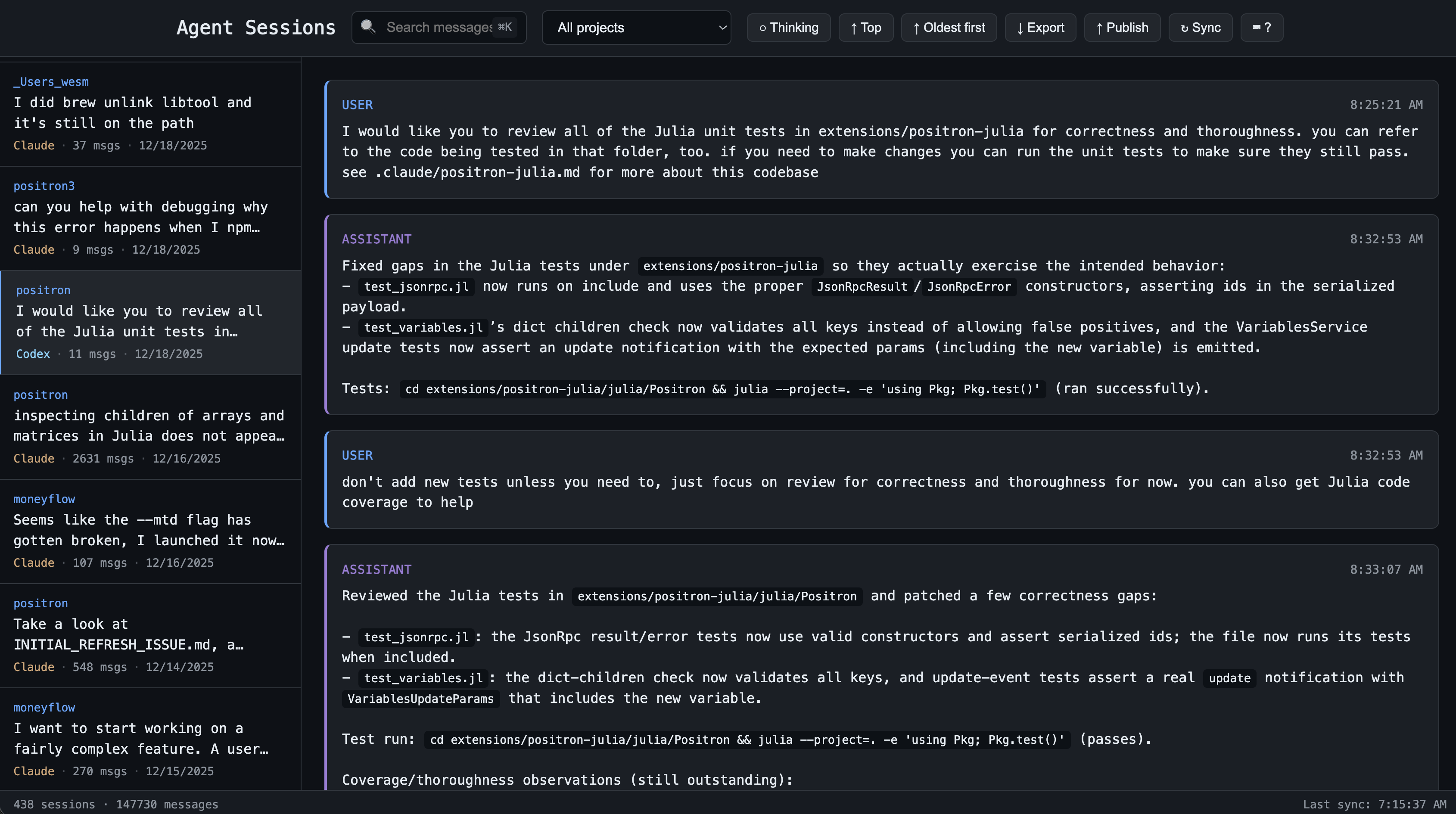
Browse, search, and revisit your AI coding sessions. Never lose track of that clever solution your AI pair programmer came up with three weeks ago.
Why?
AI coding sessions pile up fast. Finding that one conversation where you solved a tricky bug or implemented a specific pattern means digging through session files by hand. This tool gives you instant full-text search across every session from Claude Code and Codex, organized by project.
Features
- Full-text search - Find any message across all your sessions instantly
- Live updates - Active sessions refresh automatically as new messages arrive
- Auto-sync - Background sync every 15 minutes, plus manual sync with
r - Keyboard-first - Vim-style navigation (j/k/[/]) for fast browsing
- Project organization - Sessions grouped by codebase
- Export & publish - Download sessions as HTML or publish to GitHub Gist for sharing
- Local-first - All data stays on your machine in
~/.agent-session-viewer/ - Zero config - Works out of the box
Install
# With uv (recommended)
uv tool install agent-session-viewer

# With pip
pip install agent-session-viewer
Usage
# If installed via uv tool install or pip
agent-session-viewer

# Or run directly without installing
uvx agent-session-viewer@latest
Opens a browser at `http://localhost:8080`.
Options:
--port 9000- Use a custom port--no-browser- Don't open browser automatically--host 0.0.0.0- Bind to all interfaces
Keyboard Shortcuts
| Key | Action |
|---|---|
j / k |
Next / previous message |
] / [ |
Next / previous session |
o |
Related Skills

Agent Viewer
One window for every AI agent session — browse Claude Code, Codex, OpenCode, Gemini, DeepSeek, Hermes & Kimi t


Elepha
Local session memory for Claude Code and Codex. Search your past AI coding sessions and recall them inside the

Motif
A unification layer for AI coding agent sessions — collect Claude Code, Codex and Cursor sessions across your


Coding Agent Forensics
Offline single-file forensic viewer for AI coding-agent sessions — Claude Code, Codex, Cursor, Gemini, Copilot


Linkly AI Skills
Agent Skills for Linkly AI — search, browse, and read your local documents from any AI coding agent.

Local Agent Viewer
Your local long-term memory for AI agent interactions. Parse, classify, search, and visualize every interactio

Related Agents

Hatch3r Learnings Loader
Session-start agent that surfaces relevant project learnings, recent decisions, and context from previous sess


Founder
founder orchestrator — plans, delegates, and stewards long sessions. Spawns coding subagents instead of writin

SEO Agent
Owns keyword strategy and search positioning — builds a keyword cluster with free research methods, decides wh
