
Textmate Wakatime
Description
TextMate plugin for automatic time tracking and metrics generated from your programming activity.
Installation
This entry records only its repository, not the path inside it, so there is no
exact command to give. Open the source below and copy the folder into
~/.claude/skills/, or the file into ~/.claude/agents/.
README
textmate-wakatime
Quantify your coding inside TextMate 1 & 2.
Installation
Download [textmate-wakatime-v1.0.3.tmplugin](https://github.com/wakatime/textmate-wakatime/releases/download/1.0.3/textmate-wakatime-v1.0.3.tmplugin.zip)
Unzip and open the downloaded tmplugin file to install the plugin in TextMate.
Enter your [api key](https://wakatime.com/settings#apikey), then click `OK`. (Use two-finger click to paste)
Use TextMate like you normally do and your time will be tracked for you automatically.
Visit https://wakatime.com to see your logged time.
Screen Shots
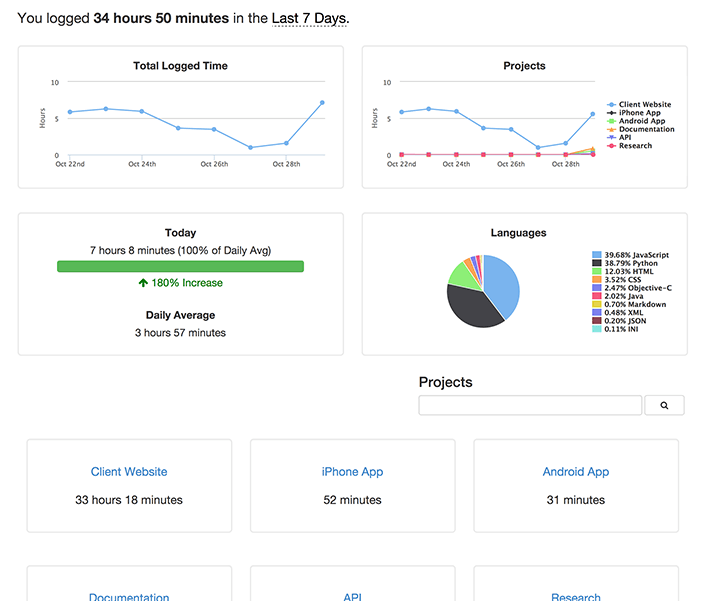
Configuring
WakaTime plugins share a common config file `.wakatime.cfg` located in your user home directory with [these options](https://github.com/wakatime/wakatime#configuring) available.
Troubleshooting
Try running this Terminal command:
curl -fsSL https://raw.githubusercontent.com/wakatime/textmate-wakatime/master/install_dependencies.sh | shThat will re-download the [wakatime-cli dependency](https://github.com/wakatime/wakatime).
If that doesn't work, turn on debug mode and check your wakatime cli log file (`~/.wakatime/wakatime.log`).
If there are no errors in your `~/.wakatime/wakatime.log` file, [Enable logging](https://github.com/textmate/textmate/wiki/Enable-Logging) then run TextMate from Terminal to see any error messages.
For more general troubleshooting information, see [wakatime/wakatime#troubleshooting](https://github.com/wakatime/wakatime#troubleshooting).
Related Skills
Epic Decompose
Break an epic into task children without creating task branches.

Claude Code Terminal Title
Gives each Claude Code terminal window a dynamic title describing the work being done

N8n Skills
Enables AI assistants to directly understand and operate n8n workflows
Composio Make
Trigger and manage Make (Integromat) scenarios
Getting Help
career-ops is an open source project maintained in limited time. Here's how to get help efficiently.

Worktree Status Check
Verify the current worktree environment and show task details.
