
Atom Wakatime
Description
Atom plugin for automatic time tracking and metrics generated from your programming activity.
Installation
This entry records only its repository, not the path inside it, so there is no
exact command to give. Open the source below and copy the folder into
~/.claude/skills/, or the file into ~/.claude/agents/.
README
atom-wakatime
[](https://wakatime.com/badge/github/wakatime/atom-wakatime)
Quantify your coding inside GitHub's Atom editor.
Installation

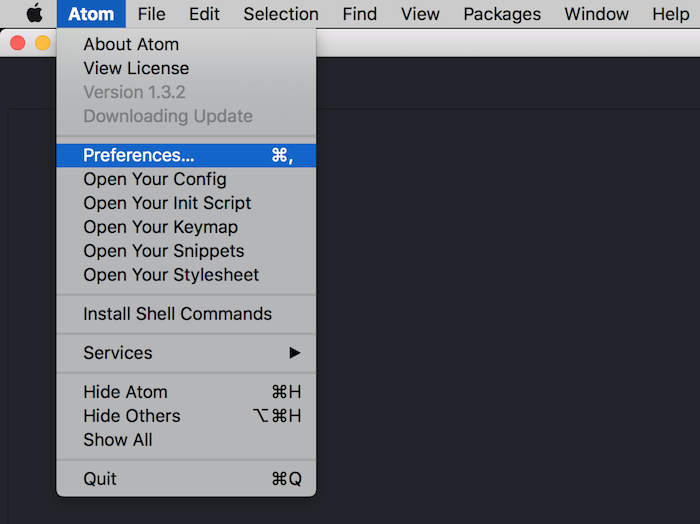
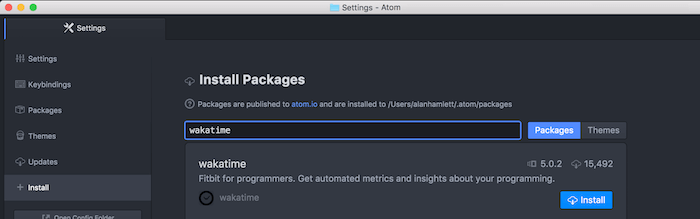
- Inside Atom, navigate to
Preferences/Settings→Installand search forwakatime.
- Click the
Installbutton.
Click `Settings`, then enter your [api key](https://wakatime.com/settings#apikey).
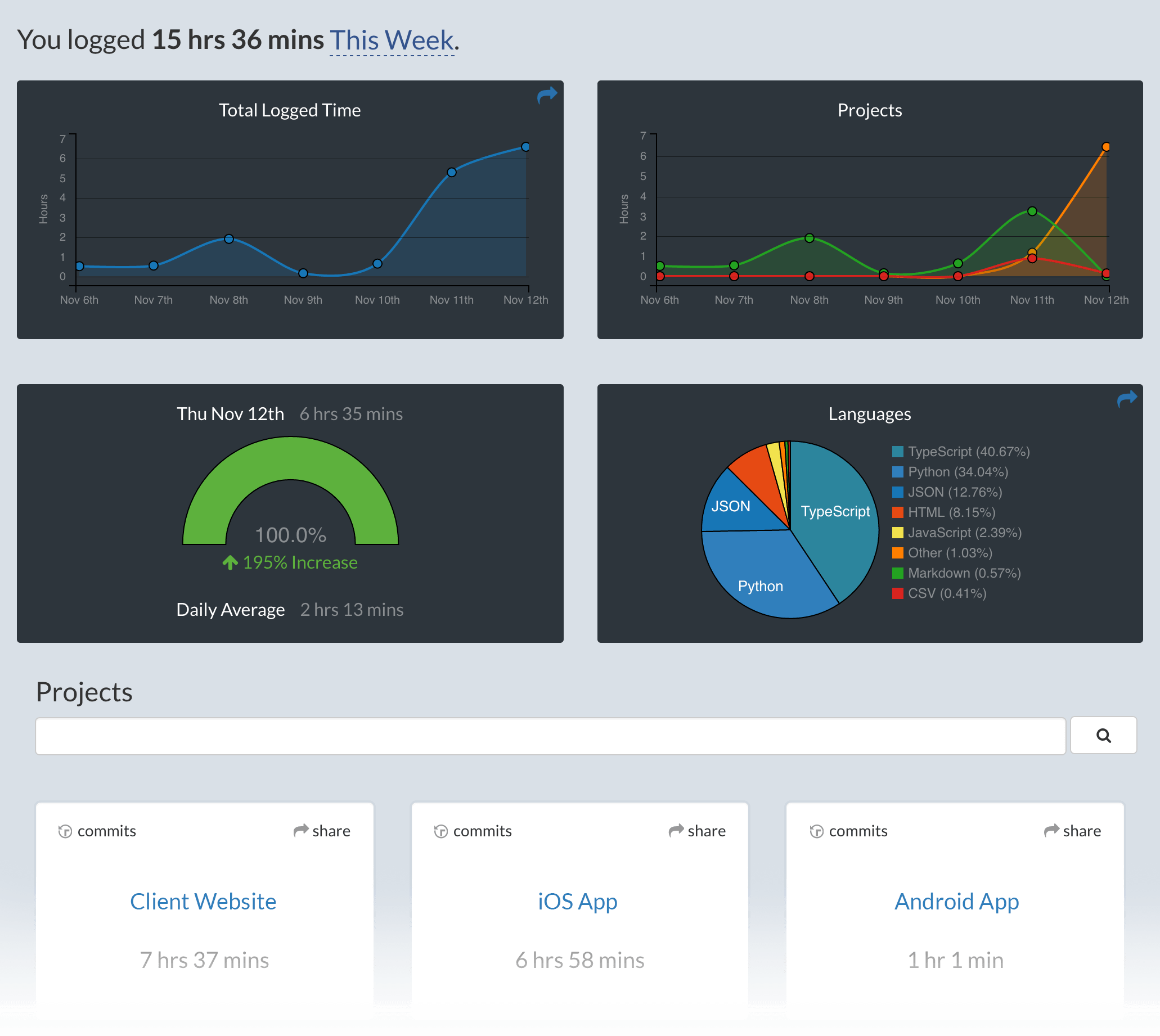
Use Atom and your coding activity will be displayed on your [WakaTime dashboard](https://wakatime.com).
Note: The leet way to install WakaTime is with this Terminal command:
apm install wakatimeScreen Shots
Configuring
Settings for atom-wakatime are under `Settings → Packages → wakatime → Settings`.
Additional settings are in `$HOME/.wakatime.cfg` for [wakatime cli](https://github.com/wakatime/wakatime#configuring).
Troubleshooting
Atom writes errors to the Atom Developer Console. To check for errors:
- Turn on the debug checkbox in
Settings → Packages → wakatime → Settings - Inside Atom, go to
View → Developer → Toggle Developer Tools - Clear the developer console (the circle button top left of the console)
- Inside Atom, go to
View → Developer → Reload Window
That will reload all plugins including WakaTime, and you should see the startup process logged in the developer console. If there are no errors in your developer console after startup and editing a file, then check for errors in your `~/.wakatime/wakatime.log` file.
For checking your `~/.wakatime/wakatime.log` file, see [wakatime/wakatime#troubleshooting](https://github.com/wakatime/wakatime#troubleshooting).
Note: Behind a proxy? Con
Related Skills
Claude Code Terminal Title
Gives each Claude Code terminal window a dynamic title describing the work being done

N8n Skills
Enables AI assistants to directly understand and operate n8n workflows
Composio Make
Trigger and manage Make (Integromat) scenarios
Getting Help
career-ops is an open source project maintained in limited time. Here's how to get help efficiently.

Worktree Status Check
Verify the current worktree environment and show task details.

Time Command
Display the current date and time in Pakistan Standard Time (PKT, UTC+5).
