
Vibermate — AI skill for Claude Code
Local traffic runtime for Claude Code and Codex — capture, route, transform, and inspect AI provider traffic on macOS.
How to install Vibermate
This entry records only its repository, not the path inside it, so there is no
exact command to give. Open vibe-agi/vibermate and copy the folder into
~/.claude/skills/, or the file into ~/.claude/agents/.
What Vibermate does
Local traffic runtime for Claude Code and Codex — capture, route, transform, and inspect AI provider traffic on macOS.
Alternatives in AI
- Peekaboo — Peekaboo is a macOS CLI & optional MCP server that enables AI agents to capture screenshots of applications, o 3.2k ★
- Guizang Yingzao Skill — 🏯 Claude Code / Codex skill — transform Chinese architecture, cultural places & travel photos into art-direct 396 ★
- Usage — macOS menu bar & Windows tray app pinning Claude Code, Codex & Antigravity quota, burn rate, and cost to your 301 ★
README
ViberMate
[English](README.md) · [简体中文](README.zh-CN.md) · [Website](https://vibe-agi.github.io/products/vibermate/)
**See and control the network boundary around Claude Code and Codex CLI.**
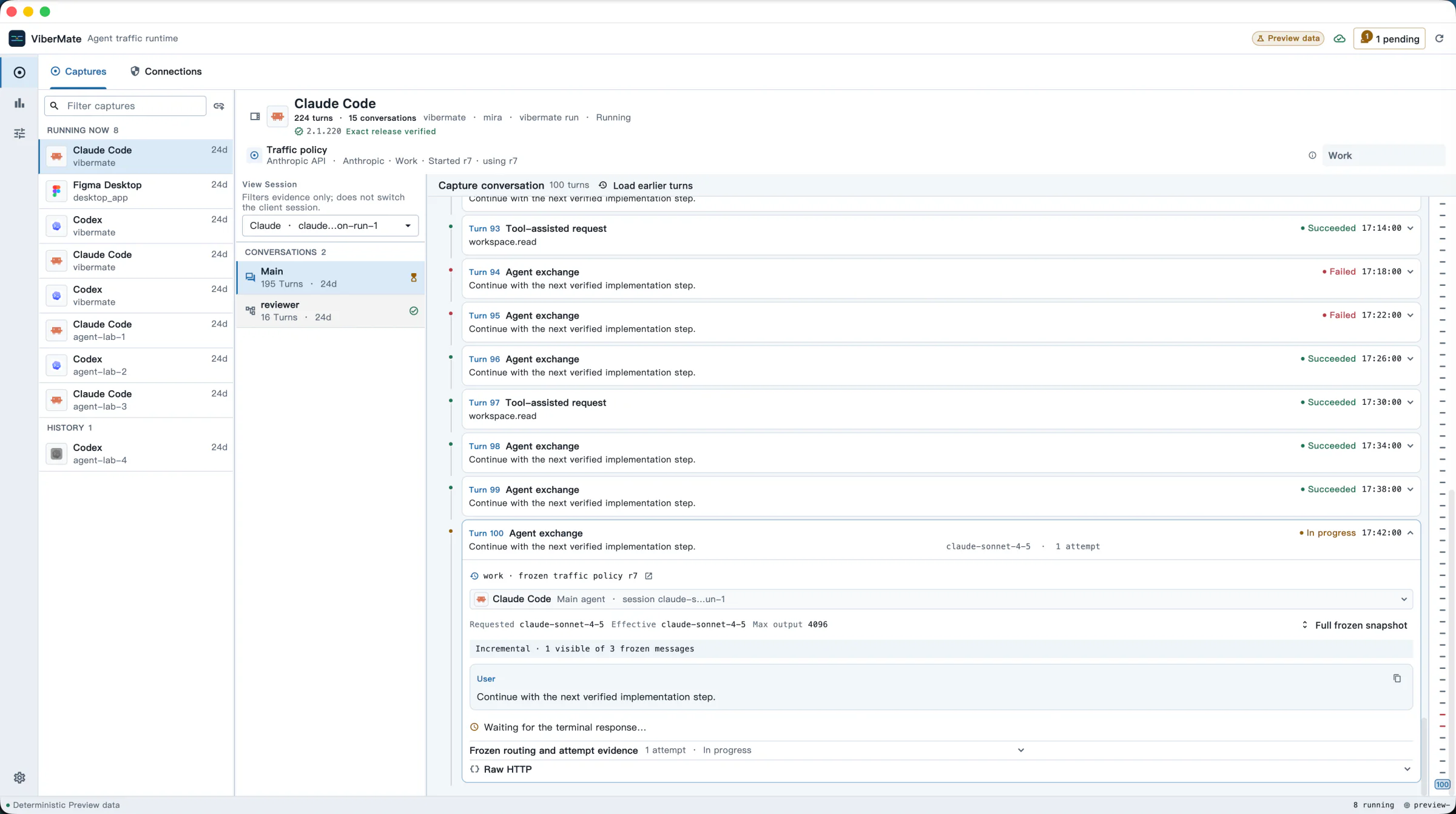
ViberMate captures agent conversations, routes requests, applies small JavaScript rules, and keeps an auditable record. It does not replace your agent or AI provider.
Choose how to run it
| Experience | Best for | Runs on |
|---|---|---|
| macOS App | A complete local workbench with the Runtime included | macOS 14+ (Apple silicon and Intel) |
| Runtime Server + Web | A browser-managed Runtime used by one or many people | Linux x86-64 and ARM64 |
vibermate command |
Starting Claude or Codex through either Runtime | macOS and Linux |
There is no separate “team edition.” One Runtime already supports multiple Runtime Users, isolated login sessions, per-user captures, and a shared admin view. Use it alone or create an account for each person or device.
| Who is using it | Sign-in experience |
|---|---|
| Local macOS App | No sign-in; the App controls its own local Runtime |
| Server owner in a browser | Personal username and password; full workbench |
| Team member in a browser | Personal username and password; own usage and password |
| Claude or Codex from Terminal | The same personal username and password, entered once |
ViberMate has no shared or default `admin/admin` credential. Login tokens are short-lived implementation details and are not something people need to copy.
macOS App: first capture
Install and open ViberMate:
brew install --cask vibe-agi/tap/vibermateIn **Settings → Access & launch → Terminal command**, choose **Set up command**. Then, from your project directory:
vibermate run -- claude
# or
vibermate run -- codex
Return to the App to inspect the new Capture. You can start without configuring
Related Skills
Watchtower
Monitor and inspect AI coding agent API traffic in real time with a web dashboard supporting Claude Code, Code

Tracelet CLI
Record and inspect Claude Code and Codex LLM traffic locally.

AginxBrain
Local-first AI gateway with bidirectional protocol conversion (Anthropic ↔ OpenAI ↔ Responses). Route Claude C


Lm Resizer
Rust-native context compression for Claude Code, Codex & MCP agents: filters & compresses noisy tool output (t


Vibe Bar
Native macOS menu-bar dashboard for AI subscription quotas, reset forecasts, local token costs, and provider s

Traffic Flow Optimization
Developed an AI-powered traffic optimization agent using PyTorch for intelligent route recommendations. Built

Related Agents
Slim Wrapper
tfx-route.sh 경유 전용 래퍼 에이전트. 코드를 직접 읽거나 수정하지 않고 Bash(tfx-route.sh)를 통해 Codex/Antigravity에 위임하는 thin wrapper. OS

Kimi Worker
Forward a coding, diagnosis, or review task to Kimi K3 (Moonshot) through the local kimi-worker.sh runtime. Us

QA Playwright
browser verification agent for user-visible work. exercise flows, capture screenshots, inspect console and net
