
Bookmark Ninja — AI skill for Claude Code
Turns your browser bookmarks into a searchable resource for your AI Agents.
How to install Bookmark Ninja
This entry records only its repository, not the path inside it, so there is no
exact command to give. Open SamaritanOC/Bookmark-Ninja and copy the folder into
~/.claude/skills/, or the file into ~/.claude/agents/.
What Bookmark Ninja does
Turns your browser bookmarks into a searchable resource for your AI Agents.
Alternatives in AI
- Paritok 4b V1 — Non-destructive compression gateway for AI coding agents 1.4k ★
- Browserwing — BrowserWing turns your browser actions into MCP commands Or Claude Skill, allowing AI agents to control browse 1.2k ★
- Dream Xi AI — 🏄 Dream XI AI turns isolated AI agents into a World Cup-level dream team.🏄 Dream XI AI 是一个面向复杂任务执行的 Multi-Ag 441 ★
README
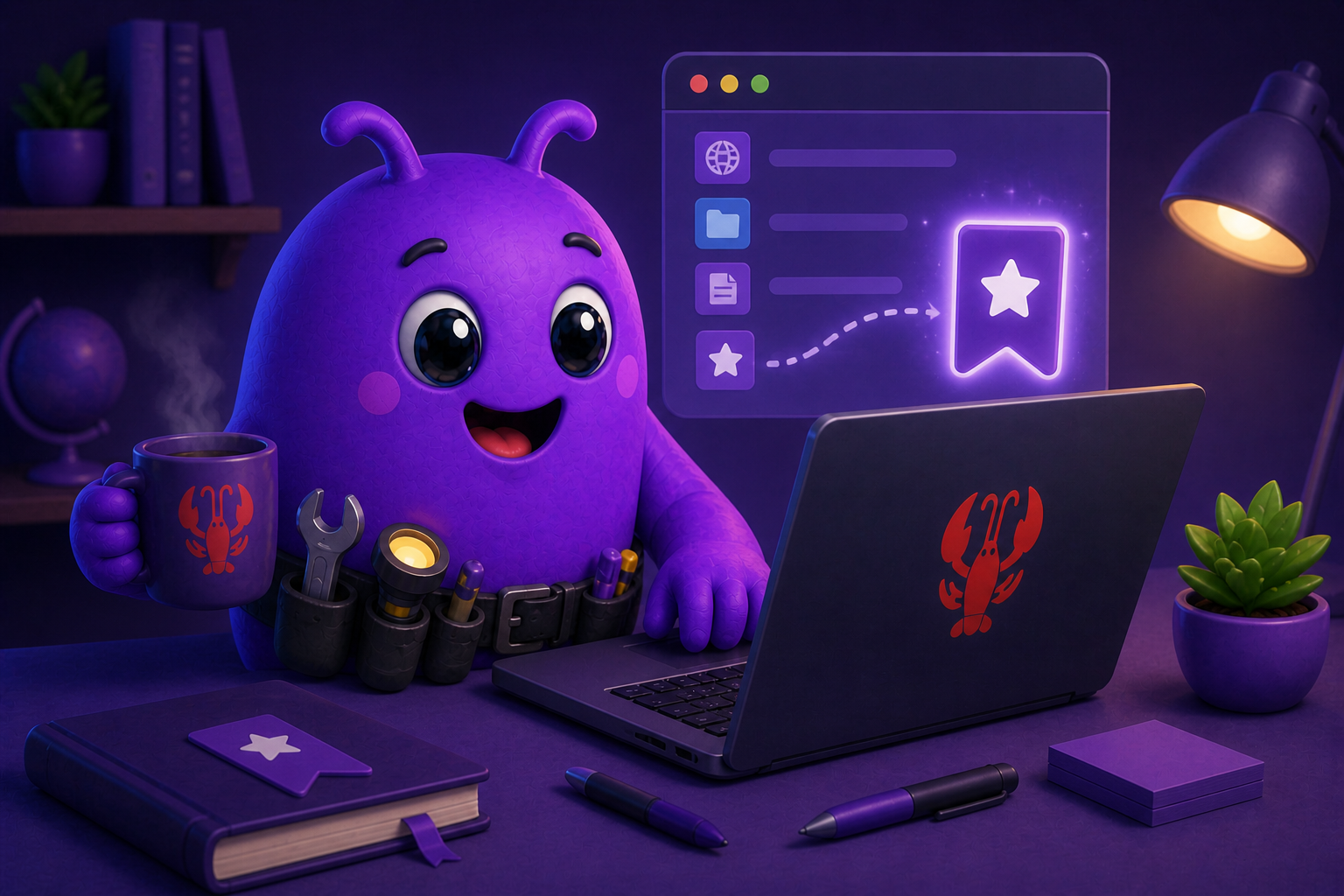
**Turn your browser bookmarks into a knowledge base your AI agent can actually search.**
Bookmark Ninja converts any browser HTML bookmark export into a clean, structured JSON or CSV index with full folder hierarchy preserved, deduplication, merge support, and optional URL liveness verification. One command, no API keys, no external services, no configuration.
**Version:** 1.1.0
Compatibility
Bookmark Ninja works on any platform that supports the Agent Skill standard:
- Claude.ai
- Cowork
- Claude Code
- Codex
- OpenClaw
- Any platform supporting the Agent Skill standard
**Runtime requirements:** Python 3.7+. Optional: `requests` library for URL liveness checking (`pip install requests`).
Installation
Claude.ai / Cowork
- Download this repository as a ZIP (green Code button → Download ZIP)
- Extract the ZIP
- Go to Settings → Capabilities → Skills
- Upload the
bookmark-ninjafolder - Enable the skill
Claude Code
cp -r bookmark-ninja ~/.claude/skills/OpenClaw Dashboard
- Click the green Code button → Download ZIP
- Extract the ZIP and locate the
bookmark-ninjafolder - Open your OpenClaw dashboard → Skills tab
- Click Add Skill and select the extracted
bookmark-ninjafolder - Enable the skill
OpenClaw terminal
cp -r bookmark-ninja ~/.openclaw/skills/
systemctl --user restart openclaw-gateway.service
Standalone (no agent platform)
git clone https://github.com/SamaritanOC/Bookmark-Ninja.git
cd Bookmark-Ninja
python3 scripts/bookmark-parser.py your-bookmarks.html
Quick Start
**1. Export your bookmarks**
| Browser | Steps |
|---|---|
| Chrome | Menu → Bookmarks → Bookmark Manager → ⋮ → Export bookmarks |
| Firefox | Menu → Bookmarks → Manage Bookmarks → Import and Backup → Export Bookmarks to HTML |
| Edge | Menu → Favorites → ⋮ → Export favorites |
Related Skills
Px0
px0 is the IDE for humans and AI, optimized for quick, fast code reviews. It turns your browser into a zero-la


Raindrop Skill
AI-powered bookmark management for Raindrop.io - works with Claude Code, Codex, Amp, OpenCode


The OpenClaw Bible
The definitive guide to running autonomous AI agents with OpenClaw. 12 chapters. No engagement bait. Read it o


Token Ninja
token-ninja routes deterministic shell commands locally — zero LLM calls, ~19µs latency. Works silently inside

VSCode Agent Skill Ninja
VS Code Extension for searching, installing and managing Agent Skills (SKILL.md) for GitHub Copilot, Claude Co


Aspm
A Git-based package manager designed for AI-assisted development, similar to npm but supporting skills, agents

Related Agents

Cdp Ninja Hidden Door
Browser debugging triage via CDP bridge - reconnaissance specialist. Routes to specialist ninja schools for de

Gauntlet QA
Stage 6 (final) of the agent gauntlet. Turns the specifier's human-point-of-view QA procedure into an executab


V3 Setup Orchestrator Enhanced
Enhanced orchestrator with dynamic agent discovery using searchable catalog and interactive clarification
